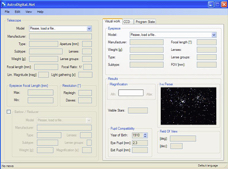
How to use it
1-The program has been invoked

1-The program has been invoked
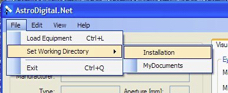
2-Select the directory containing the delivered equ files
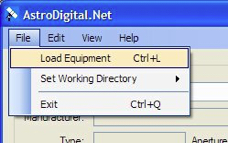
2-Select the directory containing the delivered equ files

3-Load your equipment
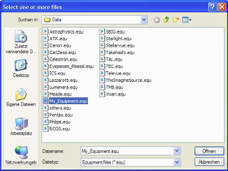
3-Load your equipment

4-Select the files containing your telescopes, eyepieces and cameras
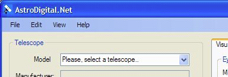
4-Select the files containing your telescopes, eyepieces and cameras

5-Choose your telescope
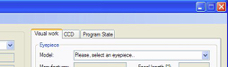
5-Choose your telescope

6-Choose an eyepiece
6-Choose an eyepiece

7-Disable this checkbox if you dont use a barlow

7-Disable this checkbox if you dont use a barlow

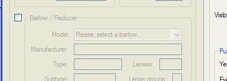
8-Enable this checkbox and choose a barlow if you want to use one
8-Enable this checkbox and choose a barlow if you want to use one

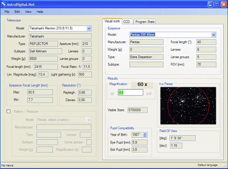
9-All relevant properties of your telescope system have been calculated
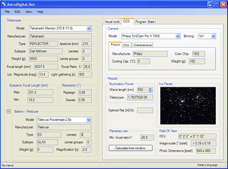
9-All relevant properties of your telescope system have been calculated

10-After selecting your camera the CCD results are also available
10-After selecting your camera the CCD results are also available

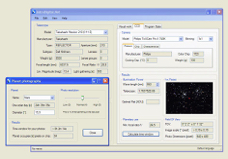
11-Calculate the time window for your planet photos
11-Calculate the time window for your planet photos

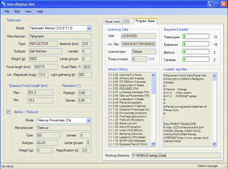
12-The loaded equipment, the change history and licencing data are displayed
12-The loaded equipment, the change history and licencing data are displayed

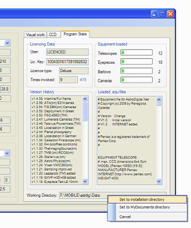
13-Press the right mouse key to select the directory containing the delivered equ files
13-Press the right mouse key to select the directory containing the delivered equ files

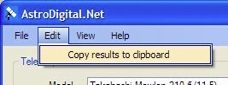
14-Copy all calculated properties to clipboard to edit the in a texteditor afterwards
14-Copy all calculated properties to clipboard to edit the in a texteditor afterwards

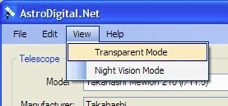
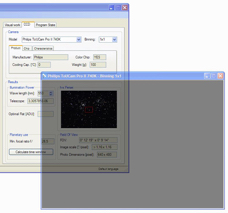
15-Use transparency to compare two systems in two program instances
15-Use transparency to compare two systems in two program instances

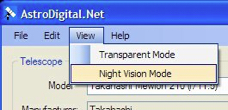
16-The night vision mode keeps you eyes adapted at night
16-The night vision mode keeps you eyes adapted at night

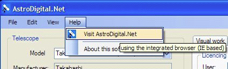
17-Visit our internet site using the integrated browser
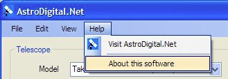
17-Visit our internet site using the integrated browser

18-About AstroDigital.Net
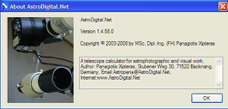
18-About AstroDigital.Net

19-The copyright and impressum window
19-The copyright and impressum window

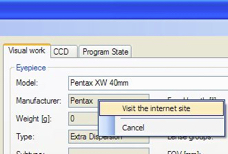
20-Press the right mouse key to visit the manufacturer's internet site
20-Press the right mouse key to visit the manufacturer's internet site

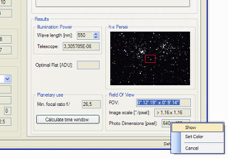
21-Press the right mouse key to show the photo dimensions for the given binning
21-Press the right mouse key to show the photo dimensions for the given binning

22-The photo dimensions for the given binning
22-The photo dimensions for the given binning

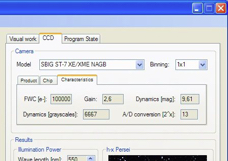
23-The properties of your camera have been calculated

23-The properties of your camera have been calculated